Affordable Group Buy Service
200+ Premium Tools Service
This Uizard prototype tutorial shows how to turn one user goal into editable screens and a clickable Preview. Follow a campus-events app from prompt through screen edits and linked actions. As of 19 November 2026, Uizard lists Autodesigner 2.0 on Pro and 1.5 on Free.
Key points
- Start with one user goal, not a long list of screen-by-screen instructions.
- Choose the mobile device type, describe the app, then select a style prompt and relevant tags.
- Treat Autodesigner's result as a draft; review every screen and correct the flow.
- Connect the event card and registration action to the screens they should open.
- Set a home screen and test each action in Preview mode.
Before you start: define one user goal
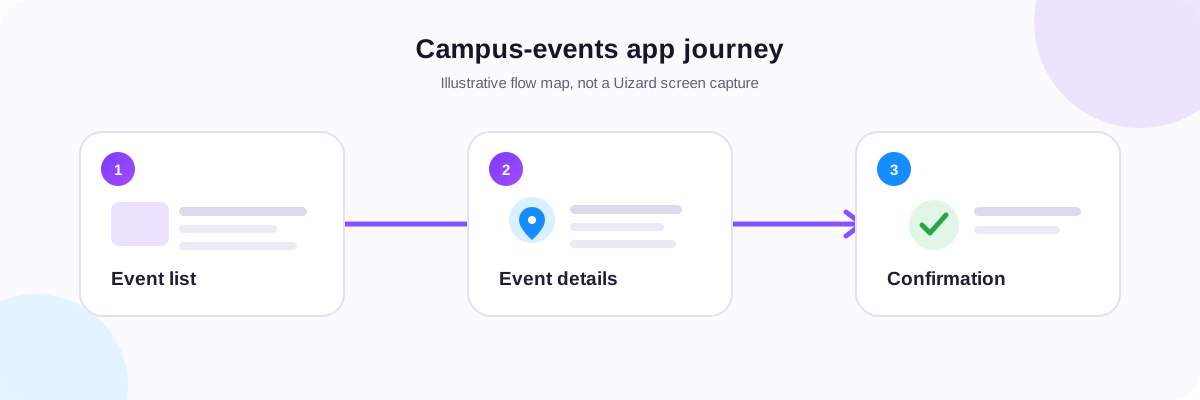
The example is a mobile app that helps students find campus events and register: browse events → open details → see confirmation. Reuse this pattern for a booking, class-planning, or service-request app.
Define the user's task and the expected result of the main action. Keep real names, private event details, and client data out of test prompts.
Start a Uizard Autodesigner project
From Start creating, choose Generate with Autodesigner, select mobile, describe the idea, and click Continue. Choose a text prompt as the style source, then add compatible style tags.
The official guide lists Pro, Business, or Enterprise access; Uizard pricing currently shows Autodesigner 1.5 on Free and 2.0 on Pro. If 2.0 is missing, check your plan rather than assuming a seller offer has a specific active allowance. The public guide was last updated in 2024, so labels may change; follow its Autodesigner steps if your editor differs.
Write a focused prompt
Describe the app, who it helps, the main task, and visual mood. Uizard recommends stating the goal rather than prescribing exact screens, flows, or placement.
Example prompt: A mobile app for discovering campus events and registering to attend. Show upcoming events, useful event details, and a clear registration action. Use a friendly, high-contrast style with generic placeholder content.
In the style field, try “light, friendly, violet accents, clear labels” and choose compatible tags. The guide notes a 300-character Autodesigner limit. Select Generate my project and inspect the result.
Autodesigner may miss a requested view; add or edit screens rather than assuming the first output is complete.
Review and edit the generated screens
Check each screen and rename it by purpose: “Event list,” “Event details,” and “Confirmation.” Use the Screens menu to add a missing step.
Select components to update text or styling. Replace placeholder copy with approved details and remove elements that do not support registration. Review labels, contrast, spacing, and order before adding interactions.
Connect the main user flow
Select the event card or button, open Interact, and connect it to a destination using the lightning/blue-arrow control documented in Uizard's guide.
Set the event card → Event details and registration → Confirmation. Check existing links for duplicates or wrong destinations. Use Interact to inspect connections; an attractive button must still point to a screen.
Set the home screen and test Preview mode
From the screen's three-dot menu, choose Set as home screen for Event list.
Open Preview at the top right and test card → details → registration → confirmation, then return to the start. Check for dead buttons, wrong destinations, blank screens, and default labels.
Preview tests navigation; it does not submit a real registration, store event data, or deploy a mobile app.
Fix common prototype problems
- Wrong start screen: Set the intended screen as home, then reopen Preview.
- A button does nothing: Add an interaction and select a real destination screen.
- Autodesigner missed a step: Add a screen or edit the design instead of expanding the prompt with unrelated instructions.
- The flow is confusing: Rename screens, remove unused paths, and retest from home.
- Autodesigner 2.0 is missing: Check the account's plan; Free and Pro list different versions.
Where BDSEOTOOLS fits
The BDSEOTOOLS Uizard Pro Personal Account is listed at ৳4,000 for one year. Its listing names Autodesigner 2.0 and 500 AI generations per month; Uizard's current pricing page lists Pro at $12 per creator per month when billed annually. These are different account arrangements, not a calculated saving. The seller's “personal” label does not confirm who owns the login email, how many creator seats are included, or how recovery and renewal work. Check the Private Accounts listing and contact BDSEOTOOLS before using the account for client work. See the Uizard Pro account guide for the plan and offer details.
FAQ
Is Uizard Autodesigner 2.0 included in Pro?
Uizard's pricing page currently lists Autodesigner 2.0 on Pro and Autodesigner 1.5 on Free. Its Help Center's Autodesigner guide lists paid plans for access. The BDSEOTOOLS annual listing also names Autodesigner 2.0; check the actual account's plan label before starting.
Can I edit an Autodesigner result?
Yes. Uizard describes generated screens as editable mockups and documents editing components in the design editor. Review and change labels, components, layout, or style before you treat the project as a prototype you can show to someone.
How do I connect screens in Uizard?
Select the component that should respond, open its interaction controls, and connect it to the destination screen. Uizard's official guide documents the lightning/blue-arrow interaction flow; test the link in Preview mode afterward.
How do I test a Uizard prototype?
Set the correct home screen, choose Preview, and click through the main user journey. For the campus-events example, check that the event card opens details and the registration action opens confirmation. Preview does not submit real data or deploy an app.
What does the BDSEOTOOLS Uizard listing include?
BDSEOTOOLS lists the offer at ৳4,000 for one year and names Autodesigner 2.0, 500 monthly AI generations, up to 100 projects, unlimited screens, premium templates/private projects, and React/CSS handoff. The listing does not specify email ownership, seat count, recovery, or renewal.
Sources
- Uizard pricing — Free and Pro feature names and pricing; checked 19 November 2026.
- Guide to Autodesigner — project creation, prompt and style guidance; last updated 12 June 2024, checked 19 November 2026.
- Managing components and managing screens — edit components, add screens, and set a home screen; checked 19 November 2026.
- Creating an interactive project and previewing projects — connect screens and test in Preview mode; checked 19 November 2026.