Affordable Group Buy Service
200+ Premium Tools Service
Here is how to make a YouTube thumbnail in Canva: create a 16:9 canvas, pair one clear image with a short phrase, and check the export at phone size. YouTube currently recommends 3840 × 2160 pixels for standard videos, while Canva's thumbnail page still lists 1280 × 720. This guide explains the difference and a free-first workflow.
Key points
- YouTube recommends a 3840 × 2160, 16:9 thumbnail for standard videos; its minimum width is 640 pixels.
- Canva's published 1280 × 720 advice is older than YouTube's current recommendation.
- A focused image and short phrase are enough for the basic workflow.
- Canva marks Magic Eraser, Magic Edit, Magic Grab, and Magic Expand as Pro.
- A thumbnail cannot guarantee more views or a higher click-through rate.
What you need before you start
Have the working title, one idea the video delivers, and a clear frame or photo you can use. Decide what the title already says and what extra clue the image can add. If you are choosing a topic, our vidIQ keyword research guide can help you explore search terms; select an idea that fits your audience.
Which conditions change the steps
- Standard video: use landscape 16:9 and YouTube's current 3840 × 2160 recommendation.
- Shorts: use YouTube's separate vertical thumbnail guidance; this landscape tutorial does not cover that upload flow.
- Canva plan: use your own image and free assets; skip tools or assets marked Pro unless your account includes them.
- Upload device: check the file-size limit for desktop or mobile before exporting.
Step 1: Create the right canvas
On Canva's homepage, choose Custom size, select pixels, enter 3840 by 2160, and create the design. Canva Help allows custom dimensions up to 8000 × 3125, so this canvas fits. See Canva's custom-size instructions.
Canva's page still lists 1280 × 720 and 2 MB. That size is 16:9 and above YouTube's 640-pixel minimum width, but YouTube currently recommends 3840 × 2160. Follow YouTube's thumbnail rules for upload requirements.
Step 2: Add one clear focal image
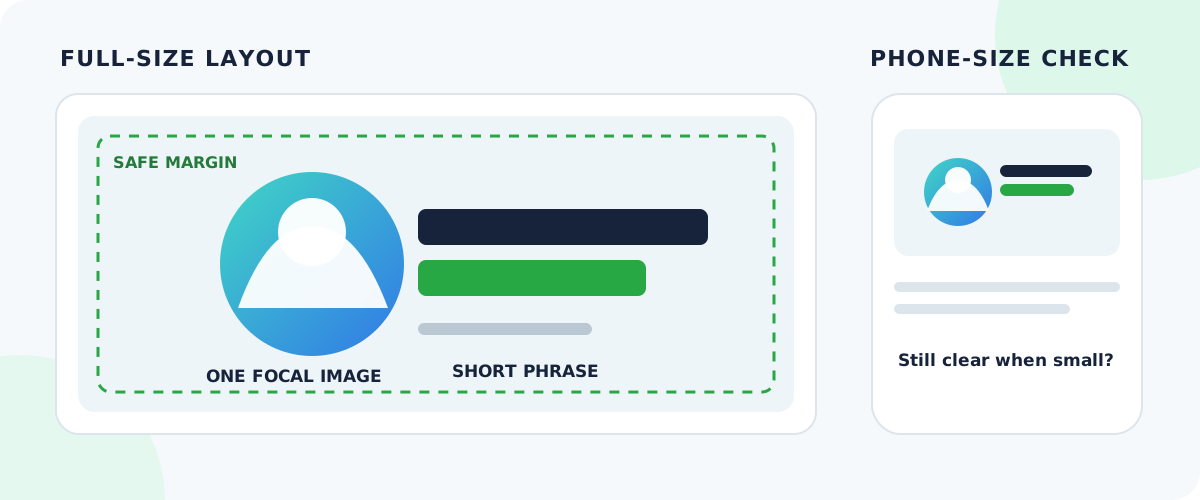
Choose a frame that shows the video's subject or action. Start with a blank canvas or simple template, use Uploads to add your image, and crop away empty space without cutting off useful detail. Use an original frame, your own photo, or an image with clear usage rights. If the subject blends into the background, try a simple shape or a different frame.
Step 3: Add a short headline and clear hierarchy
Use a short phrase that adds context instead of repeating the title. Make the subject and phrase the two most noticeable elements. Choose readable type and strong contrast; place the words over a calm area. Keep extra logos, arrows, and labels only when they explain something.
Step 4: Remove clutter and treat Pro tools as optional
Remove duplicate phrases, stickers, tiny icons, and shapes that compete with the subject. Canva marks Magic Eraser, Magic Edit, Magic Grab, and Magic Expand as Pro on its thumbnail page. They are optional; a suitable frame and basic crop are enough. Replace any asset labeled Pro unless your account includes it.
Step 5: Check the design at phone size
Download a draft or zoom out until the design looks like a video-feed card. Can you identify the subject and read the phrase without zooming in? Does the phrase add to the title? If not, enlarge the key element or remove something. This checks clarity, not click-through rate; keep the image accurate to the video.
Step 6: Download and upload the file
In Canva, choose Share → Download and select JPG or PNG. Canva recommends JPEG for a smaller file and PNG when image quality matters. Open the export to check its crop and dimensions.
YouTube accepts JPG and PNG. Its current limits are 50 MB for desktop and 2 MB for mobile uploads. In YouTube Studio, open Content, select the video, choose Thumbnail, upload the file, and save. Custom thumbnails require a verified channel; check eligibility if the option is missing.
Common mistakes
- Relying on Canva's older 1280 × 720 line instead of current YouTube guidance.
- Keeping a busy template or repeating the title word for word.
- Using a Pro feature or asset without checking account access.
- Forgetting to check file size or using imagery the video does not support.
How to tell the thumbnail is ready
- The 16:9 file follows YouTube's current size and upload limits.
- The subject and phrase are clear at feed size.
- The image and title accurately describe the video.
- The export opens and the saved thumbnail appears in YouTube Studio.
These checks confirm clarity and file readiness, not expected views or CTR. Review channel analytics after publishing.
Where BDSEOTOOLS fits
BDSEOTOOLS lists Canva Pro at ৳199 for 30 days on its current product page. This is a seller-arranged group-buy offer, not a direct Canva subscription. The site's FAQ describes accounts arranged with group-buy members, but the Canva listing does not specify session, privacy, recovery, or vendor-permission terms. It also does not state whether Canva permits this arrangement or how saved work is handled. Confirm those details before paying, especially if you need account ownership or confidential project storage. Read our group-buy access overview. This tutorial does not require Pro.
FAQ
What size should a standard YouTube thumbnail be?
YouTube recommends 3840 × 2160 pixels in 16:9, with a minimum width of 640 pixels. JPG and PNG are accepted. The file-size limits differ by upload method: 50 MB on desktop and 2 MB on mobile.
Can I make a YouTube thumbnail in Canva for free?
Yes. Use a blank design or available template, your own image, text, and free elements. Skip assets marked Pro unless your account includes them. The basic layout in this guide does not depend on a paid Canva tool.
Is 1280 × 720 still okay for YouTube?
Canva still lists 1280 × 720, which is 16:9 and above YouTube's minimum width. YouTube currently recommends 3840 × 2160. Use Canva's custom-size option to follow that recommendation, and check the current upload page before publishing.
Do I need Canva Pro to make a thumbnail?
No. Canva labels Magic Eraser, Magic Edit, Magic Grab, and Magic Expand as Pro, but none is required here. If a tool or asset is locked in your editor, skip it or use an available alternative.
Can a thumbnail design guarantee more views?
No. A design can make the video's subject clearer, but it cannot guarantee views or CTR. Keep the image accurate, then use your channel analytics to assess performance in context.
Sources
- YouTube Help — thumbnail specifications and eligibility; checked 19 November 2026.
- Canva thumbnail maker and custom-size Help — workflow and dimensions; checked 19 November 2026.
- BDSEOTOOLS Canva Pro listing and FAQ — listed price and group-buy description; checked 19 November 2026.