Affordable Group Buy Service
200+ Premium Tools Service
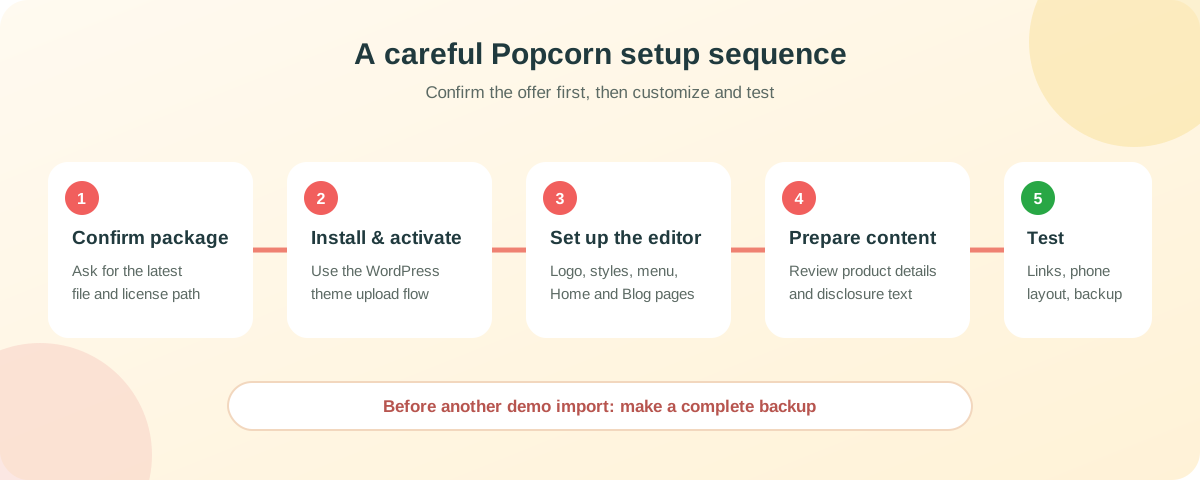
To set up Popcorn Theme for an affiliate site, install the theme ZIP, activate it, confirm the license process, then use the WordPress Site Editor to configure your logo, styles, navigation, homepage, and posts. This guide follows the latest setup instructions available in Popcorn’s public docs. If you are ordering through BDSEOTOOLS, ask for its latest package and exact delivery and update process first.
Key points
- Popcorn is a WordPress theme built around the Site Editor and designed for affiliate sites.
- The official setup flow uses a theme ZIP, WordPress theme upload, activation, and license entry.
- The vendor’s license steps and BDSEOTOOLS’s one-site offer are not automatically the same.
- Use the Site Editor for the logo, global styles, and navigation.
- Back up before trying another demo; repeated imports can make template libraries confusing.
Before you install: confirm the package and back up
If you bought Popcorn directly, the official installation guide says to download the latest theme package from the vendor account. The BDSEOTOOLS catalog lists Popcorn Theme but does not identify a release or explain how the ZIP, registered email, or update delivery is supplied. Ask the seller for the latest available package and the exact activation and update steps before you begin.
For a new project, set up a fresh WordPress site or a staging copy first. If you are changing an existing site, make a complete backup and verify that you can restore it. Popcorn’s documentation specifically recommends a full backup before trying another full-site template because the importer can leave confusing template and template-part libraries.
Install and activate Popcorn Theme
For a package you already have:
- Sign in to the WordPress dashboard.
- Open Appearance → Themes and choose Add New.
- Select Upload Theme, choose the Popcorn ZIP file, and select Install Now.
- When installation completes, select Activate.
- Open the site in a new tab and confirm the theme is active before customizing it.
The official guide uses this standard WordPress upload flow. If your file comes through BDSEOTOOLS, confirm that it is the correct ZIP and ask whether they expect you to upload it or provide access for installation. Do not assume the official vendor-account download path is included in a separate offer.
Activate the license carefully
For a direct purchase, Popcorn’s install guide says to open the theme’s license screen, select Enter Your License, and provide the license key and registered email associated with the vendor account.
The BDSEOTOOLS listing states one website activation with a license key. It does not say which email to enter, whether the seller activates it for you, or how you receive future files. Ask BDSEOTOOLS which email and activation process to use before entering an unfamiliar email or key. Its offer terms should not be treated as identical to the vendor’s own license plans.
The official install guide also says the separate Gutenberg plugin has not been required since WordPress 6.2, although it can be installed optionally. Check the current WordPress and theme instructions before adding another plugin.
Set the logo, site icon, and global styles
The Popcorn documentation opens the Site Editor through Appearance → Editor. To add a logo, open the header pattern your site uses, select its edit control, choose the Site Logo block, upload the image, then save the changes.
Next, open Styles in the Site Editor to adjust the global color palette and typography. Start with a small set of brand colors and readable body text. Preview the result on a phone before applying more detailed styling.
The site icon has a separate setting. Follow the official site-icon guide for your current WordPress interface; do not confuse the browser icon with the larger logo shown in the header.
Set navigation and the Home and Blog pages
Create the pages your visitors need, such as Home, Blog, About, and Contact. In Appearance → Editor, open the site navigation, add page or category links, arrange them in a useful order, and save.
Create separate Home and Blog pages, then assign them in WordPress’s Reading settings. Open the front page and blog archive to make sure each points to the intended page. The official Popcorn getting-started guide treats these as separate setup steps.
Use the Site Editor to adjust the homepage layout after the pages and navigation are in place. Save changes as you work so you can review them before moving on to posts.
Add affiliate content and use the documented patterns
Create a test post in Posts → Add New and use the block editor to organize it. Popcorn’s official product page describes product patterns and an affiliate-disclosure banner. Use these elements only where they fit the content, and make any paid relationship clear to readers. A theme pattern does not replace the rules of an affiliate network or the disclosure requirements that apply to your business.
Before publishing, preview the post and check the product name, price, image, button destination, and disclosure. Test every affiliate link, including links on mobile. Do not publish a demo product or placeholder link by accident.
Avoid demo-import mix-ups
Popcorn’s official template guide warns that repeated one-click demo imports can leave confusion in the Site Editor’s templates and template parts. Use a backup or staging site when trying a different design.
The official reset instructions include deleting imported posts, pages, media, and categories and resetting templates and parts. Those actions can remove real site content if used on the wrong site. Do not bulk-delete anything on a live website just to try another design; identify imported demo material first and keep a restorable backup.
Where BDSEOTOOLS fits
The BDSEOTOOLS catalog lists Popcorn Theme at ৳499 for Lifetime, with one website activation using a license key and lifetime auto updates. The listing does not identify the release supplied or explain the file-delivery, registered-email, or update process. Ask for the latest available package and those exact steps before ordering. The vendor’s own pricing and license plans are separate; this listing does not establish that vendor support or other vendor-plan terms are included. Check the Theme & Plugins listing and contact BDSEOTOOLS to confirm the package.
FAQ
Do I need to install Gutenberg separately?
The official Popcorn installation guide says Gutenberg has not been required since WordPress 6.2, though it may be installed optionally. Follow the current instructions for the WordPress site you are setting up.
How do I activate Popcorn Theme?
Upload and activate the theme ZIP in Appearance → Themes. For a direct vendor purchase, the official guide then uses the theme’s license screen with a key and registered email. If your package comes through BDSEOTOOLS, confirm its activation steps first.
Can I try another demo on an existing site?
You can, but Popcorn’s documentation warns that repeated imports can confuse templates and template parts. Make a complete backup and use a staging copy before importing another design. Do not remove content unless you have identified it and can restore it.
Does BDSEOTOOLS provide the latest Popcorn package?
The catalog does not identify a release. Ask BDSEOTOOLS to confirm that the package they provide is the latest available to your offer and to explain how updates are delivered.
What does the ৳499 BDSEOTOOLS listing include?
The current listing states one website activation with a license key and lifetime auto updates. It does not specify a release, the registered email, the delivery method, or whether vendor support is included.
Sources
- Popcorn Theme getting-started guide — installation and site setup; checked 19 November 2026.
- Official Popcorn install guide — ZIP installation, license entry, and Gutenberg note; checked 19 November 2026.
- Discovering Popcorn templates — backup and repeat-import caution; checked 19 November 2026.
- Popcorn navigation guide and logo guide — Site Editor navigation and logo; checked 19 November 2026.
- Popcorn global styles guide — fonts and colors; checked 19 November 2026.
- Popcorn product page — product patterns and official product context; checked 19 November 2026.