Affordable Group Buy Service
200+ Premium Tools Service
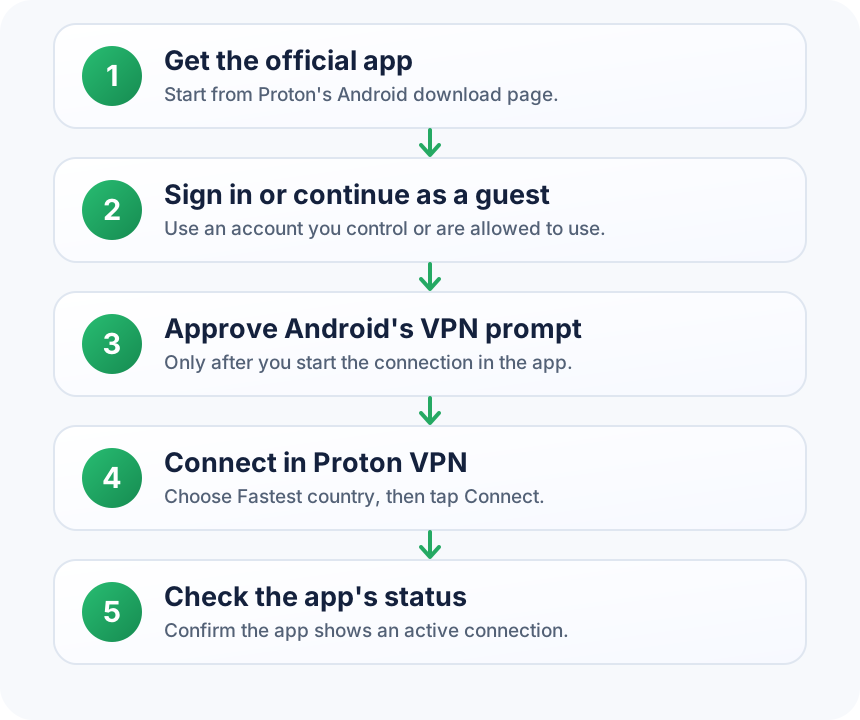
To complete a Proton VPN Android setup, install the official app, sign in or continue as a guest, start a connection, and approve Android's VPN request only after you initiate it in Proton VPN. The app's home screen shows its connection status. This guide covers Android phones and tablets, common first-connection issues, and account-safety checks; it does not verify any seller-provided account or plan.
Key points
- Proton's current Android support guide lists Android 8.0 and later.
- Download the app through Proton's official Proton VPN Android download page.
- You can sign in with a Proton account or continue as a guest for free features.
- Approve Android's VPN permission prompt only when you just started the connection in Proton VPN.
- Android allows only one Always-on VPN app at a time.
Check Android and install the official app
Check that your phone or tablet runs Android 8.0 or later, the minimum listed in Proton's Android support guide. Then open Proton's official Proton VPN Android download page and use the app source linked there.
Avoid APK mirrors or installer links sent by an unknown person. If the Play Store is unavailable on your device, start at Proton's official download page and follow the current alternative it provides rather than searching for a copy elsewhere.
Open the installed app and choose whether to sign in or continue as a guest. The screen names can change between app versions, so follow the current labels shown in the app.
Sign in safely
Use a Proton account you control, or select guest access if you only need to try the free features. Proton's Android guide documents both options. The locations and features available in the app can depend on the account and plan.
If another person supplied the login, pause before entering it. Confirm that you are allowed to use it, who controls the recovery email, which subscription is active, how many devices may connect, and what renewal and support terms apply. A seller's label alone does not confirm those details. Do not send your own password, one-time code, or recovery code to anyone.
Connect for the first time
On the app's home screen, select Fastest country, then tap Connect. The available locations may differ by account. On the first connection, Android displays a system request to let Proton VPN create a VPN connection.
Tap OK only if you just initiated the connection in Proton VPN. This is Android's normal VPN permission step, not a prompt to approve an unrelated app. If the request appears unexpectedly, cancel it and open Proton VPN yourself before trying again.
When the connection succeeds, Proton's support guide says the app's home screen turns green and displays the selected server location. Check that status before relying on the VPN connection.
Confirm the connection and disconnect
Use the app's home screen to check that it shows an active connection and the selected location. That confirms the app's reported status; it does not prove that every app or website will behave the same way.
To stop the connection, return to Proton VPN and tap Disconnect. Your device then uses its regular internet connection. If you need a VPN again, start it from Proton VPN and check the app's status after connecting.
Fix common Android connection problems
- You cancelled the Android request: Return to Proton VPN, start the connection again, and approve the request only when Android shows it for the connection you just started.
- Android reports another VPN: Android allows only one app to be selected as the Always-on VPN at a time. Check the VPN setting on your device. Change it only if you intend Proton VPN to be the active Always-on service.
- The app cannot connect: Confirm that Wi-Fi or mobile data works, then try another server. Proton's connection troubleshooting guide lists these basic checks.
- The connection drops when the screen turns off: Some Android manufacturers use battery controls that can stop VPN apps in the background. Check Proton's Android background-app guide for instructions that match your phone; menu names vary by manufacturer and Android version.
Do not change several network or battery settings at once. Apply one relevant fix, reconnect, and check the app's status again.
Know what a VPN does not guarantee
A VPN changes the route your internet traffic takes. Websites see the VPN server's IP address instead of your ordinary IP, but cookies and browser or device fingerprinting can still identify or track you. A VPN alone also does not protect your phone from malware or every kind of attack.
Treat the connected indicator as the app's connection status, not as a promise of anonymity or complete security. Keep Android and your apps updated, use unique passwords, and check links before opening them.
Frequently asked questions
Do I need a paid Proton VPN plan to connect on Android?
No. Proton's Android guide offers guest access for free features, and you can also sign in with a Proton account. The locations and features available depend on the account's current plan. Check the plan shown in your own account rather than assuming a seller's description confirms it.
Why does Android ask to set up a VPN connection?
Android shows a system permission request the first time the app starts a VPN connection. Approve it only after you tap Connect in Proton VPN. If the prompt appears when you did not initiate a connection, cancel it and open the app directly.
How can I tell whether Proton VPN is connected?
Proton's Android support guide says the home screen turns green and shows the selected server location after connection. Check that screen inside the app. The status is not a test of every website, app, or privacy setting on your device.
Can Android keep two Always-on VPN apps active?
No. Proton's troubleshooting guide says Android permits one Always-on VPN app at a time. Other VPN apps may still be installed, but only one can hold that system setting. Check the VPN settings on your device if Android reports a conflict.
Does Proton VPN make me anonymous on Android?
No. A VPN can change the IP address websites see, but cookies and browser or device fingerprinting may still track activity. Proton also notes that a VPN alone does not protect a device from malware or every attack. Use it as one privacy tool, not a complete security solution.